POKY User Manual
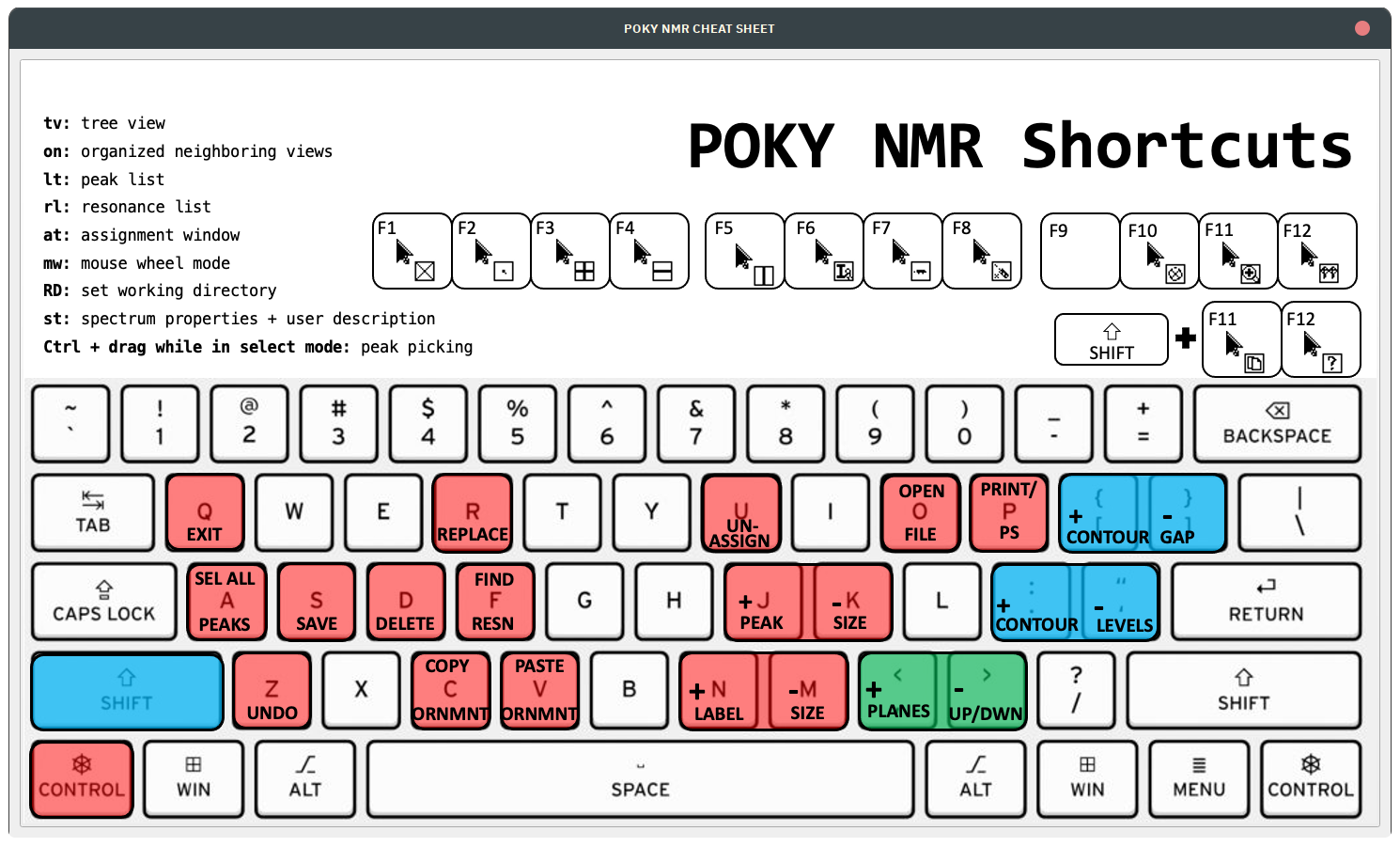
Common Commands
Sparky offers a variety of two-letter accelerators to streamline your workflow. Below, you’ll find a categorized list of these commands along with brief descriptions of their functionalities.
- cf opens the command finder window
File IO
- fo to open a spectrum or a Sparky / POKY save file
- jo to open a Sparky / POKY project
- fs to create a Sparky .save file (a config file with various display settings)
- js to save the project (also a config file for window layout etc.)
Spectra display and looks
- xa: Show nucleus type on axis.
- xe: Special Python command for saving the peak list in Xeasy format.
- xr: Roll axes. Useful for navigating 3D and 4D spectra.
- xx: Axis transpose. Swaps the axes.
- yt: Synchronize axes of various spectra. Ideal for peak picking in 3D and 4D spectra using a 2D as a reference.
- zf, zi, zo, zp: Zoom full spectrum, zoom in, zoom out, and zoom to the previous view, respectively.
- ec: Easy contour dialog allowing you to adjust all loaded spectra. RECOMMENDED
- ct: Adjust contour levels and colors. Better use ec.
- cl: Adjust the color of an ornament.
- oz: Adjust the size of an ornament.
- ol: Overlays spectra.
- ci: “Inverse background color”: in fact, this dialogue allows changing the color of the selected peak (POKY build 29. Aug 2024)
- vt: View settings. Adjusts various spectral settings, including aspect ratio of axes (e.g. expand one axis by increasing
Aspect).
Peak and Spectrum Manipulation
- a1, a2, a3: Add spectral width (SW) to a peak in the F1, F2, or F3 dimension. Useful for aliased spectra.
NOTE: sweepwidth is an term incorectly used to refer to spectral width.
- A1, A2, A3: Subtract SW from a peak in the F1, F2, or F3 dimension. For handling aliased spectra.
- at: Assignment tool. Assists in assigning peaks.
- dr: Delete resonances not used in any peak assignment. Cleans up the resonance list.
- eu: Undo the last peak manipulation.
- it: Integration tool for peak integration.
- kr: Restrictive peak picking tool. Allows using one peak list as a guidance for peak picking in another spectrum. E.g. 1H-15N HSQC -> 4D HCNH NOESY.
- lt: Opens the peak list for a given spectrum, offering various options.
- oc: Ornament copy. Copies assignment/label information between spectra.
- op: Ornament paste.
- pa: Select all peaks in a spectrum.
- pc: Peak center. Refines the centering of peaks.
- pv: Provides a list of sizes and peak counts in all open spectra.
- rl: Opens the resonance list for the project, offering various functions and displays.
- rp: Read in a list of peaks in Sparky format from external tools like AutoAssign or PINE, aka load sparky list file with assignments to existing spectrum:
  Assignment         w1         w2
    Q47NE2-HE22    110.585      6.621
    Q77NE2-HE22    111.920      6.782
    N29ND2-HD22    111.860      6.792
    N73ND2-HD22    111.747      6.806
    N39ND2-HD22    111.951      6.842
    N85ND2-HD22    111.527      6.876
    N64ND2-HD22    114.934      6.913
         G50N-H    106.253      7.121
    Q47NE2-HE21    110.576      7.267
          85N-H    110.658      7.322
Note: For peaks with assignments not following the convention [A-Z][0-9]+[A-Z0-9’]+-[A-Z0-9’], use a custom script that modifies the .save file to ensure compatibility.
- rr: Resonance rename. Renames resonances for consistency.
- st: Spectrum tool. Useful for global axes shift corrections (e.g. “referencing”).
- tb: Table of resonances for the project. Helps in identifying missing assignments.
- vc: View centering. Centers the view on a specific peak, especially useful when have associated peaks in 2D with 3D or 4D spectra.
- vd: View duplicate. Duplicates the view of a spectrum into another window.
- vR: Show assignments on the edge of the spectrum.
- vS: Show 1D slice on the edge of the spectrum.
- vz: Set the visible depth - useful for unfolding/unaliasing in the 4D HCNH NOESY.
Pointer Modes
- F1: Selection mode. Selects elements within the spectrum.
- F6: Add a label to your spectrum.
- F7: Draw a line, useful for marking or measuring.
- F8: Peak picking mode. Identifies peaks within the spectrum.
- F10: Integration mode. For integrating areas under peaks.
- F11: Zoom mode. Zoom in and out of specific areas of the spectrum.
Tips for Handling Peaks
When using the rp command to load a list of peaks, ensure the assignments follow the conventional format ([A-Z][0-9]+[A-Z0-9’]+-[A-Z0-9’]). For peaks with non-conventional names, consider using a custom script that modifies the .save file to ensure compatibility.